You're all set.

AI Chat Archive works on Claude and ChatGPT. Pick the one you want to export from — your first file is about a minute away.

Export a Claude conversation

Four steps, from an open chat to a file on your disk.

1

Open an existing conversation on Claude.ai

Sign in at claude.ai and open a chat from the sidebar — the export runs on the conversation you're looking at, so pick one before you export. Once installed, the extension starts by itself on claude.ai as long as your browser allows it to run on the site — nothing to switch on, and no extension account to create.
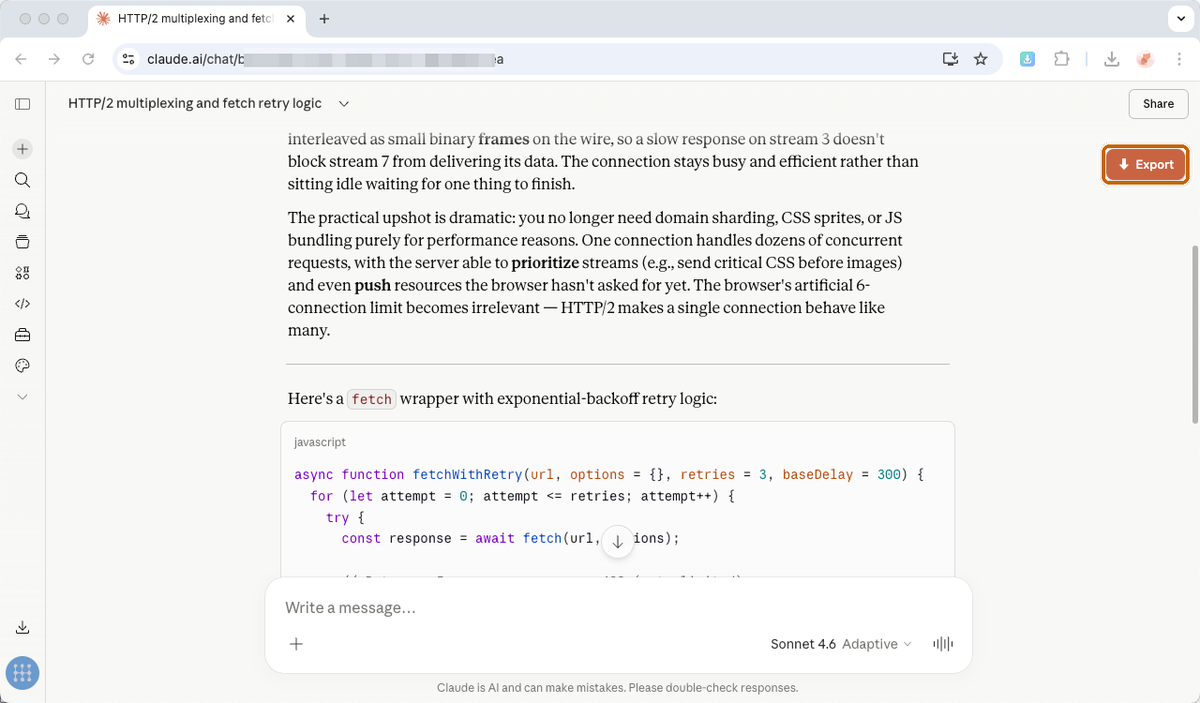
Claude.ai conversation page with the floating Export button visible top-right
2

Click the floating Export button

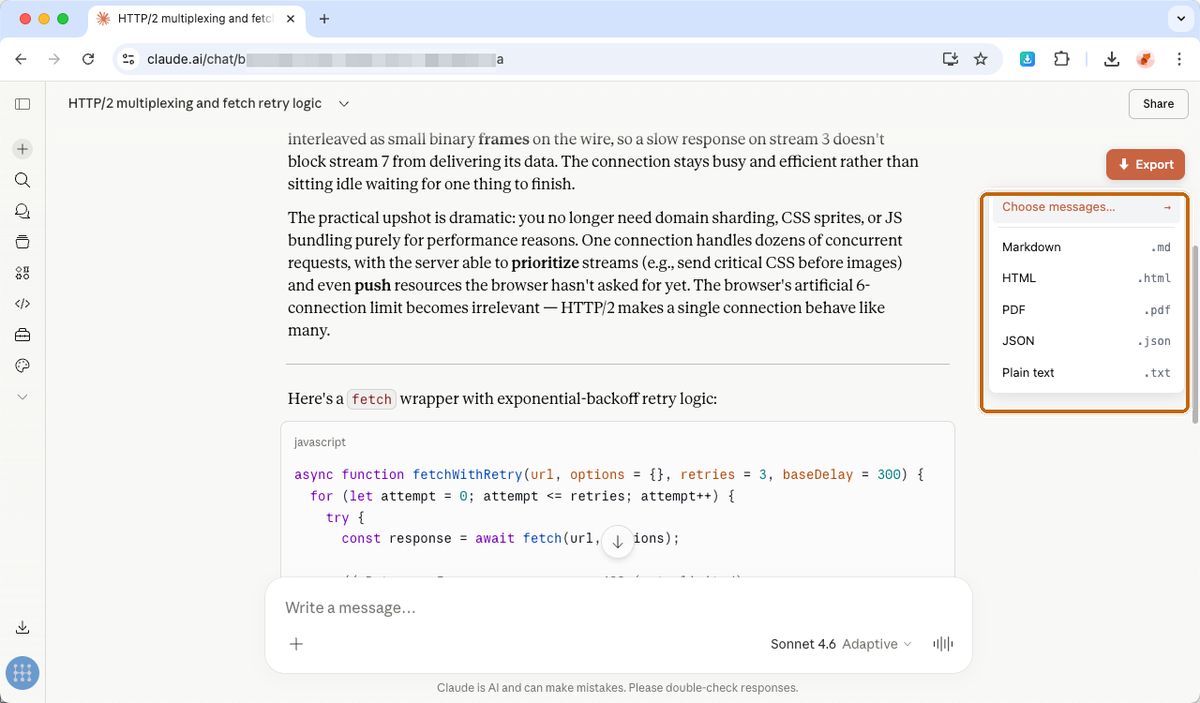
Look for the orange ↓ Export button at the top-right of the Claude window. A popup menu opens with PDF / HTML / Markdown / JSON / TXT. You can also open the extension popup from the AI Chat Archive icon in your browser toolbar, next to the address bar.

The AI Chat Archive format menu open with Choose messages…, Markdown, HTML, PDF, JSON, and Plain text options
3

Pick a format — or pick the messages first

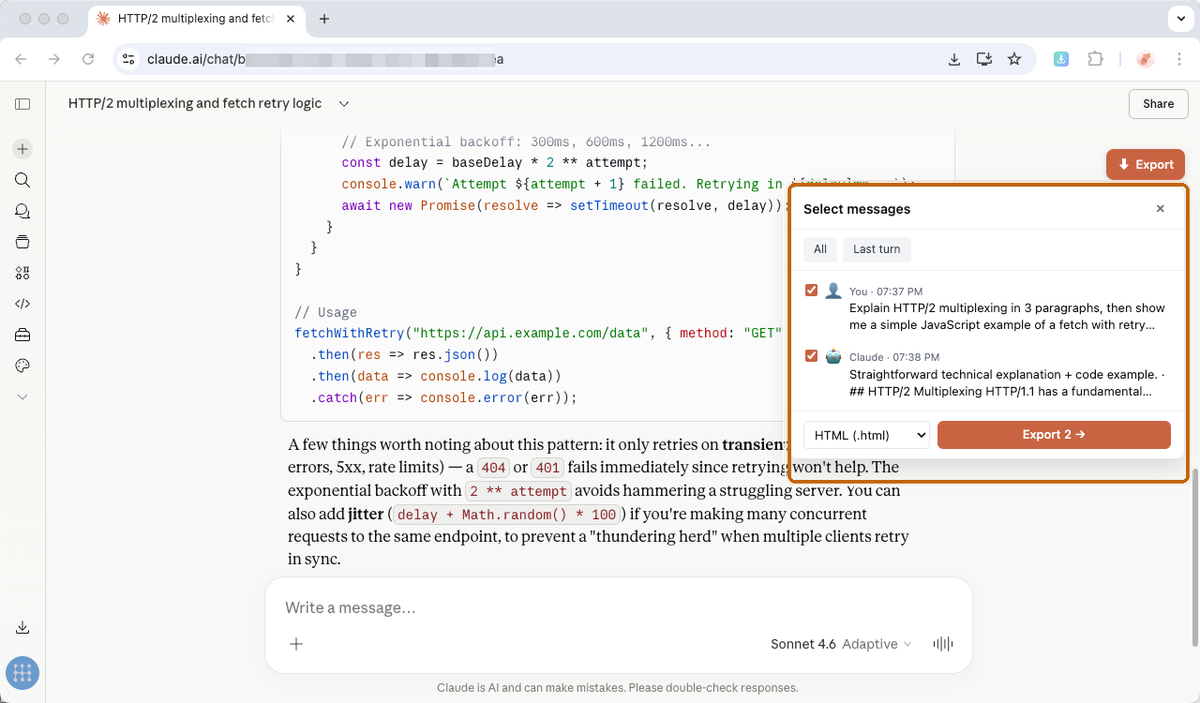
Markdown, HTML, JSON and TXT download straight away, saved wherever your browser puts downloads. PDF works differently: it opens your browser's print dialog, which is step 4. To keep only part of a long chat, click Choose messages… first: tick the turns you want, choose the format in the dialog, then export.

The Select messages picker dialog open with All / Last turn presets, two messages checked, format dropdown, and Export button
4

Saving as PDF: use the print dialog

PDF is the one format your browser finishes for you. Choosing PDF opens the browser's print dialog on a clean, paginated version of the conversation. Set the destination to Save as PDF (Chrome, Edge, Firefox) or use the PDF menu in Safari's print sheet, then save. The PDF is built on your machine — the conversation is not sent to a third-party PDF converter.

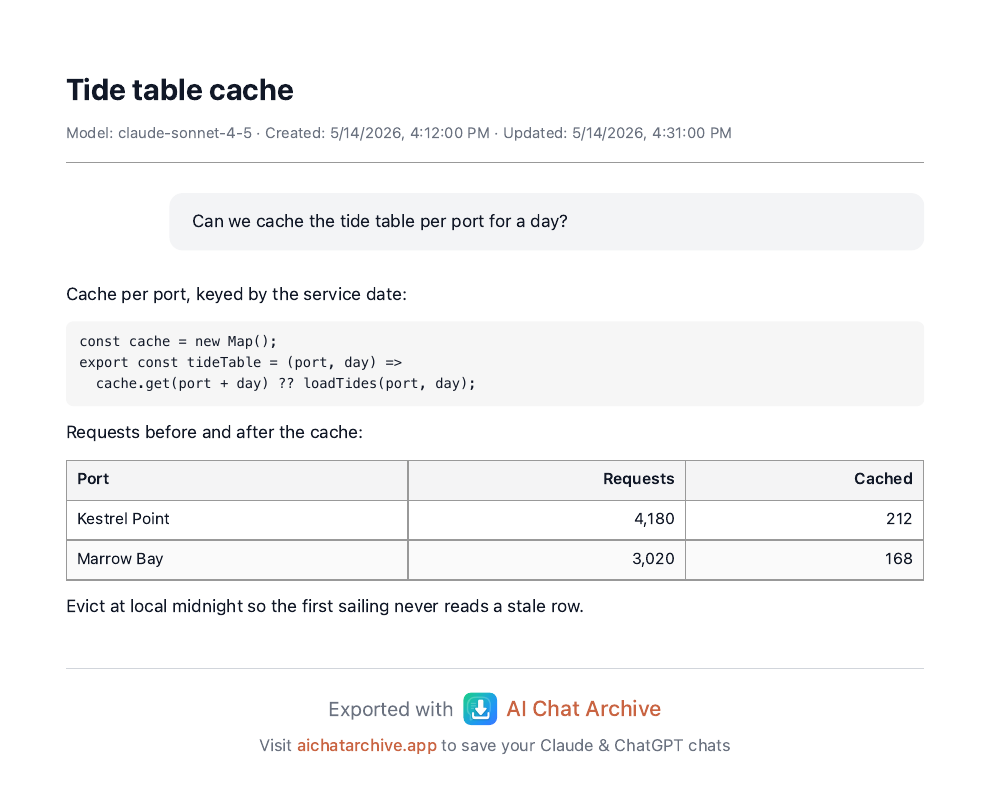
A printed-PDF preview of an exported Claude conversation with proper typography and code blocks

Example PDF generated from fictional content.

Whole projects and your full history are exported from the extension popup, with a license.

Export a ChatGPT conversation

Same extension, same button, same five formats.

1

Open an existing conversation on chatgpt.com

Sign in at chatgpt.com and open the chat you want to save from the sidebar. Once installed, the extension starts by itself on chatgpt.com if your browser allows it to run there — nothing to switch on, no extension account. If the button is missing, check site access. Chats inside a Project and chats with a custom GPT export like any other conversation.

2

Click the floating Export button

The Export button sits at the top-right of the conversation. Click it and the format menu opens with PDF / HTML / Markdown / JSON / TXT — or open the same menu from the AI Chat Archive icon in your browser toolbar.

3

Pick a format

Markdown, HTML, JSON and TXT download right away, following your browser's download settings. PDF goes through your browser's print dialog instead, as described in step 4. Images in the conversation are embedded in the HTML and PDF exports.

4

Saving as PDF: use the print dialog

Choosing PDF opens your browser's print dialog on a clean, paginated version of the chat. Set the destination to Save as PDF (Chrome, Edge, Firefox) or use the PDF menu in Safari's print sheet, then save. It's rendered locally, and there's no daily PDF limit.

A note on Projects: conversations inside a ChatGPT Project export one by one, or in a batch with a license. Bundling a project's instructions and knowledge files into one archive is currently a Claude Project Export feature.

No Export button? Start here

Try these steps in order.

  1. Reload the conversation tab. A freshly installed extension doesn't attach to tabs that were already open. Press reload on the claude.ai or chatgpt.com tab and wait for the conversation to finish loading.
  2. Make sure you're signed in on the provider. The extension reads the conversation through your own logged-in session. On a signed-out page, or on the marketing homepage rather than an open chat, there's nothing to export and no button.
  3. Check the extension's site access in your browser. Browsers let you narrow where an extension may run.
    • Chrome / Edge: right-click the AI Chat Archive toolbar icon → This can read and change site data → allow it on claude.ai and chatgpt.com (or on all sites).
    • Firefox: Add-ons and themes → AI Chat Archive → Permissions.
    • Safari (macOS): Settings → Extensions → AI Chat Archive → allow access for the site.
    Reload the tab afterwards.
  4. Still nothing? Email support@aichatarchive.app with your browser and the page you were on — that's usually enough to pin it down.

What's free, and what a license adds

Plans and browsers

A license comes as a monthly, yearly or lifetime plan — see the pricing page for what each one currently costs. AI Chat Archive runs on Chrome, Edge and Firefox. There is also a Safari version, which is macOS-only. Gemini support is planned.

Where your conversations go

Need project export, batch export, or attachment bundling? See plans and current pricing.

Stuck or have a question? Email support@aichatarchive.app or open an issue on GitHub.